Features
Clipnest is a free, open-source, native menu-bar app for macOS and, since 1.0, Linux (Ubuntu 22.04/24.04 with GNOME, X11 or Wayland). It quietly remembers everything you copy — text, links, images, and files — and hands it back the instant you need it. Here’s everything it does.
On Linux, everything below works the same unless noted, with Linux keys: Ctrl takes the place of ⌘, Alt the place of ⌥, and Delete removes an item. The global hotkeys are Alt+Super+V (picker) and Alt+Super+E (expand a snippet). Platform differences are listed under Linux differences.
Clipboard history
- Full clipboard history — automatically captures everything you copy: plain text, rich text, URLs, images, and files.
- Smart de-duplication — copy the same thing twice and it won’t clutter your history.
- Accessibility permission survives updates (Mac) — update Clipnest and you don’t have to re-grant Accessibility: your permission survives, because every release is signed with the same certificate. See Signing, honestly for how.
Finding things fast
- Global hotkey — press ⌥⌘V anywhere to pop the picker open right at your cursor, over any app (even full-screen).
- Instant search — start typing to filter your entire copy-paste history in real time, with matches highlighted (⌘F to jump back to the search field).
- Type filters — narrow the list to just text, images, files, or links with one click.
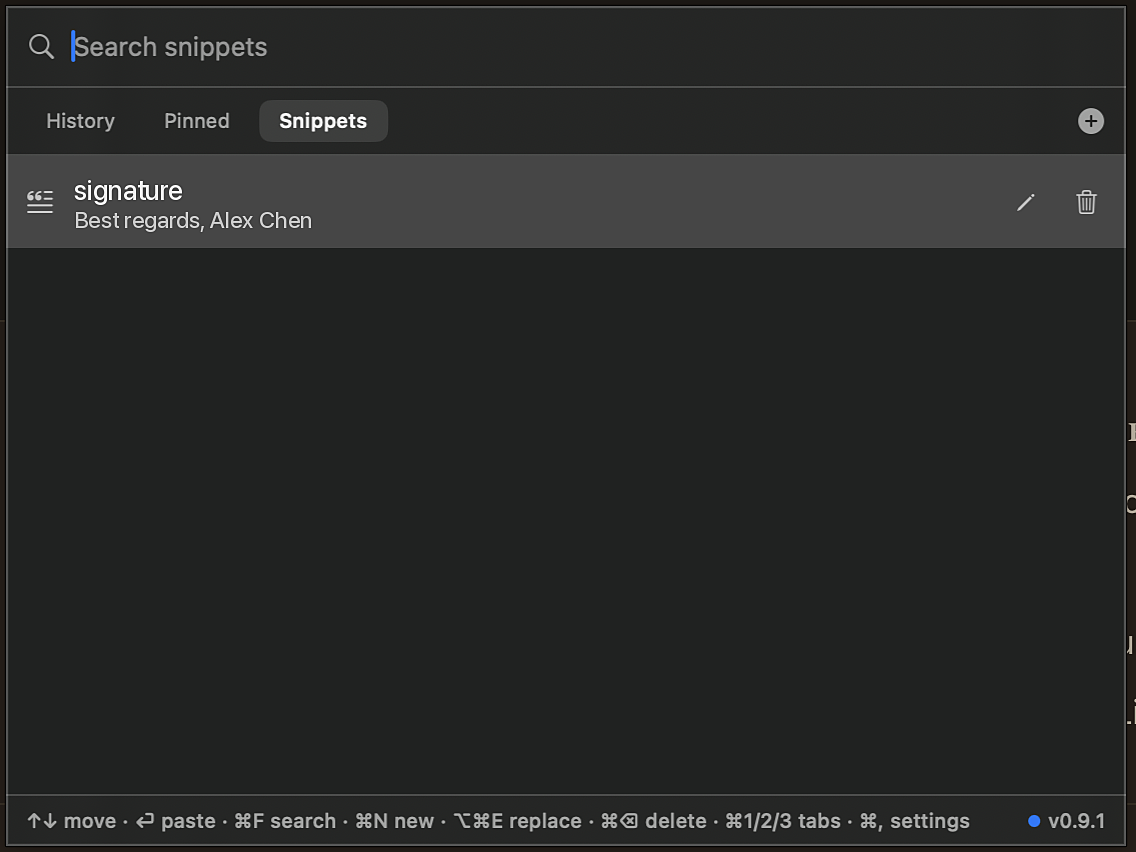
- Tabs — History, Pinned, and Snippets, switchable with ⌘1 / ⌘2 / ⌘3.
- Hover previews — hover an item (or, with Settings -> General -> Show preview when selecting with the keyboard on, arrow to it) and a popover shows the full content: the image at up to 40% of screen width (with any recognized text shown below it), the full scrollable text (loaded in chunks for huge clips), or a file’s name, size, and path.
Pasting
- Paste into your active app — pick an item and, with Accessibility granted, Clipnest types it straight into the field you were using; otherwise it’s placed on your clipboard to paste yourself.
- Paste without formatting — ⌥Return only differs from plain Return where there’s actually something to strip: on rich text items it pastes the plain-text form instead of the formatted one, and on an image row with recognized text (see OCR below) it pastes that recognized text instead of the image. On plain text, links, files, and images with no recognized text, ⌥Return pastes exactly what Return does.
- Pin your favorites — keep the items you reuse most pinned to the top, always a keystroke away (⌘P).
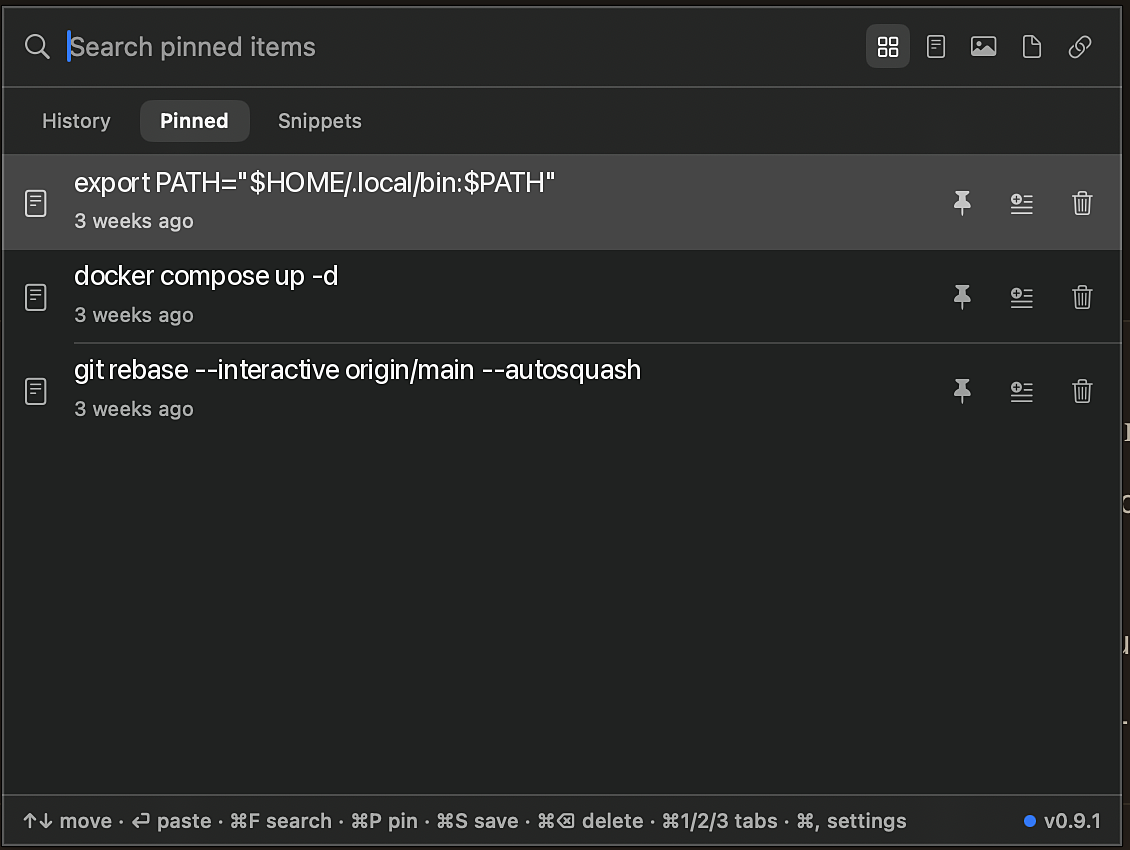
Snippets & keyword expansion
Save reusable text (a signature, boilerplate, a command) with a Tag, and paste it from the Snippets tab or drop it into any app by its Tag. Turn a text or link history item into a snippet with ⌘S.
The Tag doubles as the expansion keyword, so tags must be unique: matching ignores case and surrounding spaces, and saving a duplicate tag is blocked with a message naming the snippet that already uses it.
Expand anywhere: nothing expands automatically as you type. Type a snippet’s Tag in any app, select it, and press ⌥⌘E (Alt+Super+E on Linux) — Clipnest replaces the selection with the snippet’s Body. It works in every application, using a two-tier approach on the Mac: Accessibility first (reads and replaces the selection directly, without ever touching your clipboard), with a clipboard-based fallback (snapshotting and restoring your clipboard) for apps where the Accessibility API can’t read the selection, such as Electron/Chrome-based apps. On Linux, expansion works on both X11 and Wayland (on Wayland it goes through IBus), and in terminals it declines rather than risk corrupting the command line.
If it can’t expand, Clipnest says why instead of beeping: “Select a snippet tag, then press the shortcut.” when nothing is selected; “Check the tag in the Snippets tab.” when no snippet uses the selected text; “Turn it on in Settings > Permissions.” when Accessibility is missing (macOS); “Try again, or paste from the picker.” when the app didn’t accept the replacement. On the Mac a small message appears near the pointer — it never takes focus and is hidden from screen sharing. On Linux it is a desktop notification (needs /usr/bin/gdbus or /usr/bin/notify-send; otherwise a terminal bell).
On-device OCR (optional, off by default)
Let Clipnest read the text in your screenshots so you can find them by what they say, not just when you copied them. Turned on in Settings → History, “Recognize text in copied images” is off by default, with a Fast / Accurate quality choice — Accurate is the default. It runs entirely on-device — Apple’s Vision framework on the Mac; on Linux, a bundled ONNX Runtime with PP-OCRv5 models shipped in the clipnest-ocr packages: no upload, no model download, no network call of any kind. See Privacy for the trade-off before you turn it on.
Settings
Everything about how Clipnest behaves lives in one Settings window (⌘,), across five tabs:
- General — launch Clipnest at login, pause clipboard capture with one toggle (while paused, the menu-bar or tray icon is dimmed with a pause mark), and turn the background update check on/off.
- History — controls how much history is kept. The default is the most recent 2,500 items (a limit you chose yourself is kept); switch to a day-based cap (30 days by default) or Everything (no cap at all) instead. Pinned items are always kept regardless of the cap. Clear All History… wipes everything (including pinned items) after a confirmation. This tab also has the OCR toggle described above.
- Apps — exclude specific apps from capture, on top of the built-in password-manager denylist (which can’t be removed).
- Shortcuts — rebind both global hotkeys (open the picker, expand a snippet) to whatever key combination you want.
- Permissions — on the Mac, see whether Accessibility is granted and fix it in one click, including guidance for the one case System Settings can’t diagnose on its own (a rebuilt/updated app whose old permission entry no longer matches). On Linux, see your setup status and grant the one-time auto-paste permission.
Keyboard-first
Arrows to move, Return to paste, Esc to dismiss, ⌘F to search, ⌘P to pin, ⌘⌫ to delete, ⌘1/2/3 for tabs, ⌘, for Settings. Both global hotkeys (⌥⌘V and ⌥⌘E) are rebindable — see Usage for the full shortcut reference.
Featherweight & native
Pure Swift, sips almost no memory. On the Mac it’s SwiftUI, a few MB, feels like part of macOS, and lives in the menu bar with no Dock icon day-to-day (opening Settings briefly shows one). On Linux it’s a native GTK 4 app with a tray icon (Open Clipnest, Pause Capture, Settings…, Quit).
Private by design
Everything stays on your computer — no servers, no sync, no telemetry, no account. See Privacy for the full picture, including the OCR trade-off.
Linux differences
- Picker position. GNOME doesn’t let apps place their own windows on Wayland, so the picker opens where GNOME puts it rather than at your cursor. The optional GNOME Shell extension restores cursor placement and showing above full-screen windows — see Download.
- Auto-paste permission. Auto-paste needs a one-time grant that adds you to a dedicated
clipnest-inputgroup, which can create a virtual keyboard and nothing else. Log out and back in once after granting it; until then Clipnest copies your choice and you press Ctrl+V yourself. - Terminals. Pasting into GNOME Terminal and other VTE terminals uses Ctrl+Shift+V automatically.
- Password managers. Copies marked as secret (
x-kde-passwordManagerHint, used by KeePassXC and others) are never stored. On Wayland, Clipnest can’t tell which app made a copy, so Settings → Apps exclusions apply only to X11/XWayland apps; the secret marker works everywhere. - Ubuntu 22.04 ships GTK 4.6, which has an upstream clipboard bug that can, rarely, make Clipnest quit. It’s fixed in GTK 4.10+ (Ubuntu 24.04). Your history is never affected.
Ready to try it? Download Clipnest or read the usage guide to get started.